> ## Documentation Index
> Fetch the complete documentation index at: https://docs.rendless.com/llms.txt
> Use this file to discover all available pages before exploring further.
# Quickstart
> Get start by rendering your first image in less than 1 minute using the
In this guide you will learn how to render an image using the [simple render API](/references/simple-url).
## Account creation and template creation
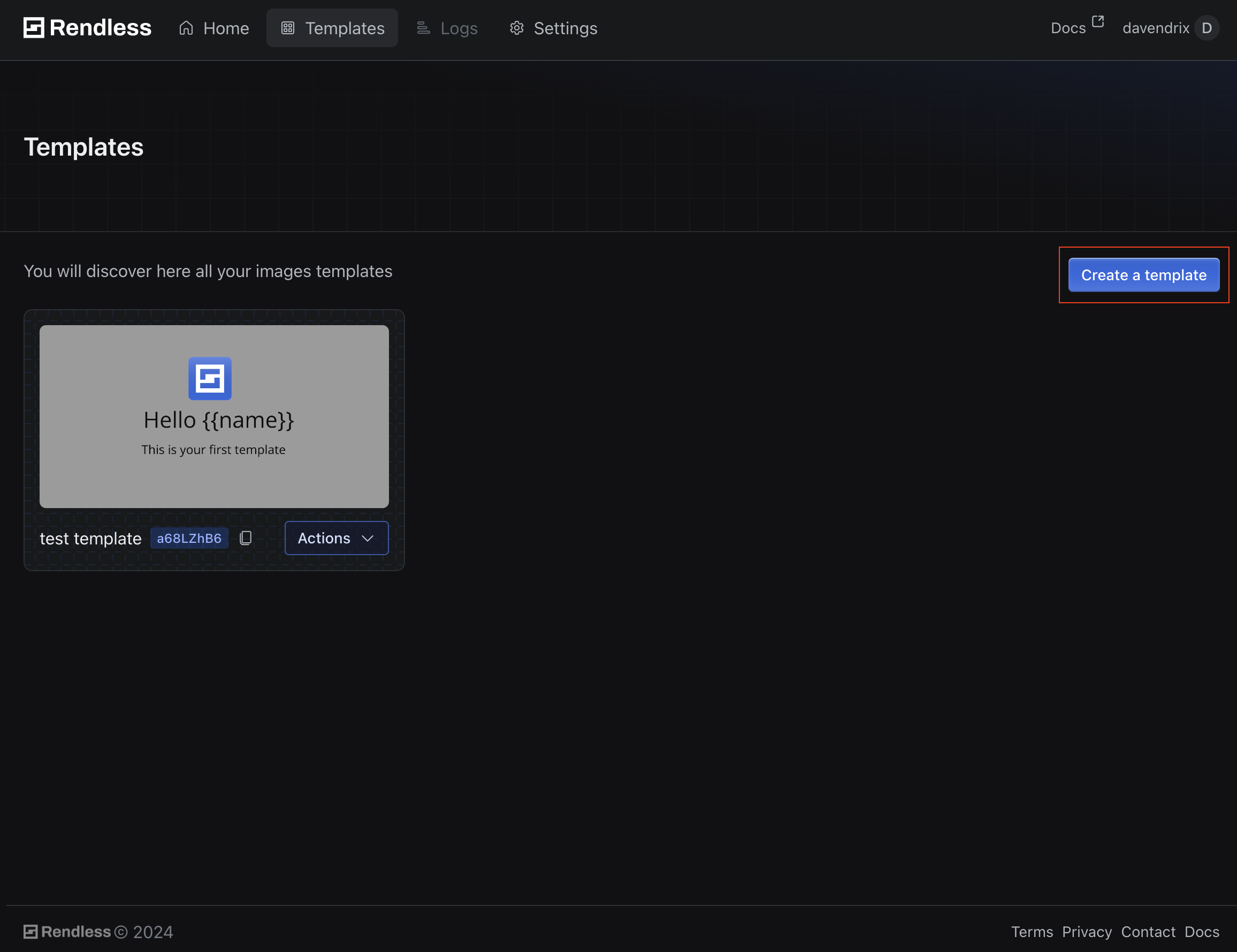
To get started, you need to create an account on [Rendless](https://rendless.com). Once you have created an account, you can create a template on the page [Templates](https://rendless.com/templates) by clicking on the "Create template" button.
 ## Image generation
After creating a template, you can generate an image using [the simple render API](/references/simple-url). You need to provide the template ID and the data to be rendered in the image.
for example this call :
```bash theme={null}
curl -X GET https://rendless.com/api/simple-url/TEMPLATE_ID?name=John
```
In this example, the template ID is `TEMPLATE_ID` and the dynamic data to be rendered is `name=John`.
This call returns a URL to the generated image.
Lean more about the [dynamic images with variables](/variables).
You could diretly use this URL in your website or app to display the generated image as og image in your head tag.
```html theme={null}
```
## Conclusion
In this guide, you learned how to create your first image using the [simple render API](/references/simple-url). You can now use Rendless to generate images for your website or app.
Customize your images with variables
## Image generation
After creating a template, you can generate an image using [the simple render API](/references/simple-url). You need to provide the template ID and the data to be rendered in the image.
for example this call :
```bash theme={null}
curl -X GET https://rendless.com/api/simple-url/TEMPLATE_ID?name=John
```
In this example, the template ID is `TEMPLATE_ID` and the dynamic data to be rendered is `name=John`.
This call returns a URL to the generated image.
Lean more about the [dynamic images with variables](/variables).
You could diretly use this URL in your website or app to display the generated image as og image in your head tag.
```html theme={null}
```
## Conclusion
In this guide, you learned how to create your first image using the [simple render API](/references/simple-url). You can now use Rendless to generate images for your website or app.
Customize your images with variables